PDkef
Academic paper reader
On-device
Reading papers on a screen

An Academic Paper Reader for Highlighting and Notes

Reading a paper well means marking it: the claim you want to keep, the method you doubt, a question for later. Highlight PDF is the reader I built for that. Drag along a line like a marker, write a comment beside it, and your paper never leaves your device.

Last updated

Who it is for

For anyone who reads to understand

Students

A course pack, a scanned chapter, the paper your seminar meets on. Mark it as you read, then print it with your notes beside the lines for revision.

Researchers

A literature review is a pile of PDFs you keep coming back to. Your highlights and comments download inside the file, so they open in any PDF viewer next time.

Close readers

A report, a contract, a long article saved as a PDF. The same marker and the same notes, with nothing to install and no account to make.

Highlight

Drag along a line, the way you would with a marker
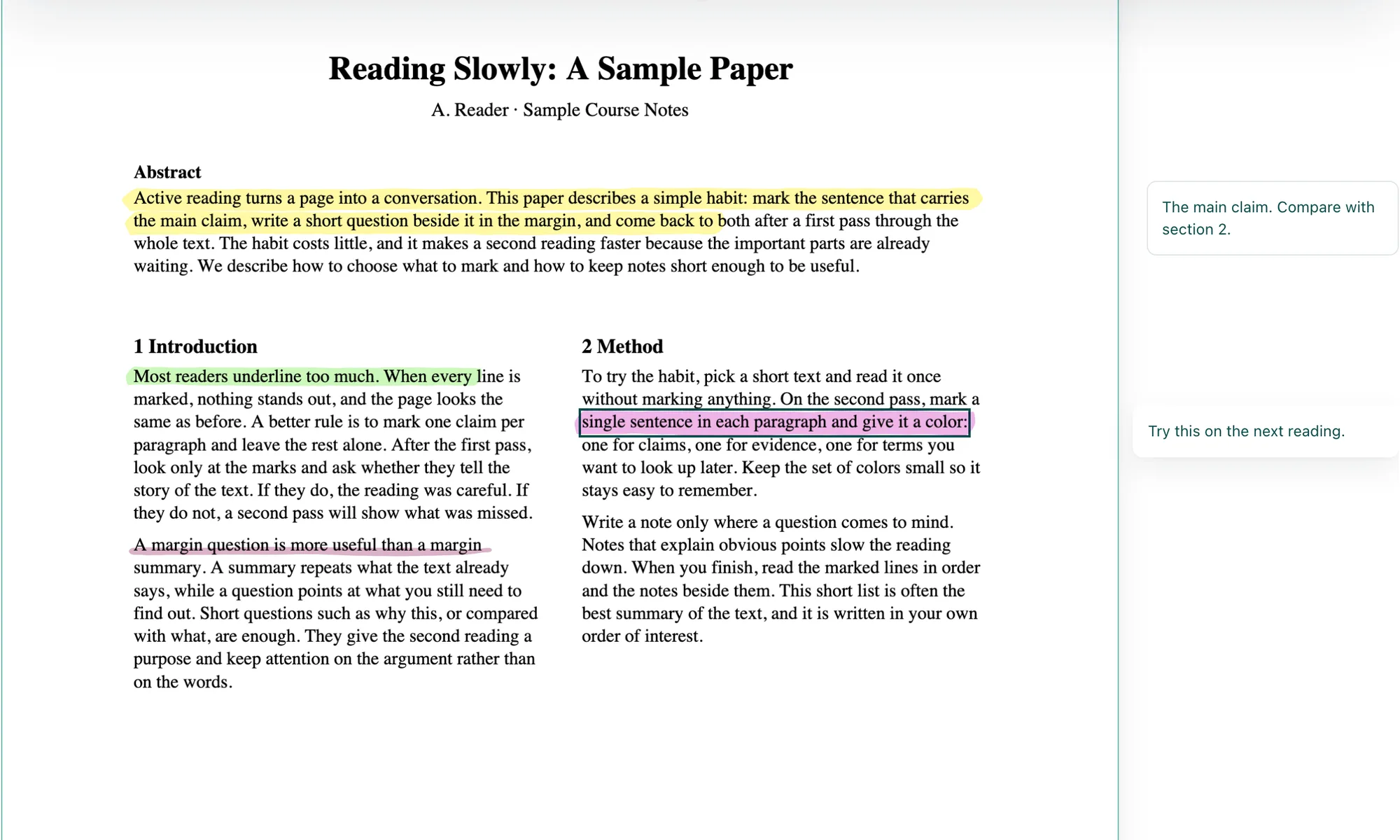
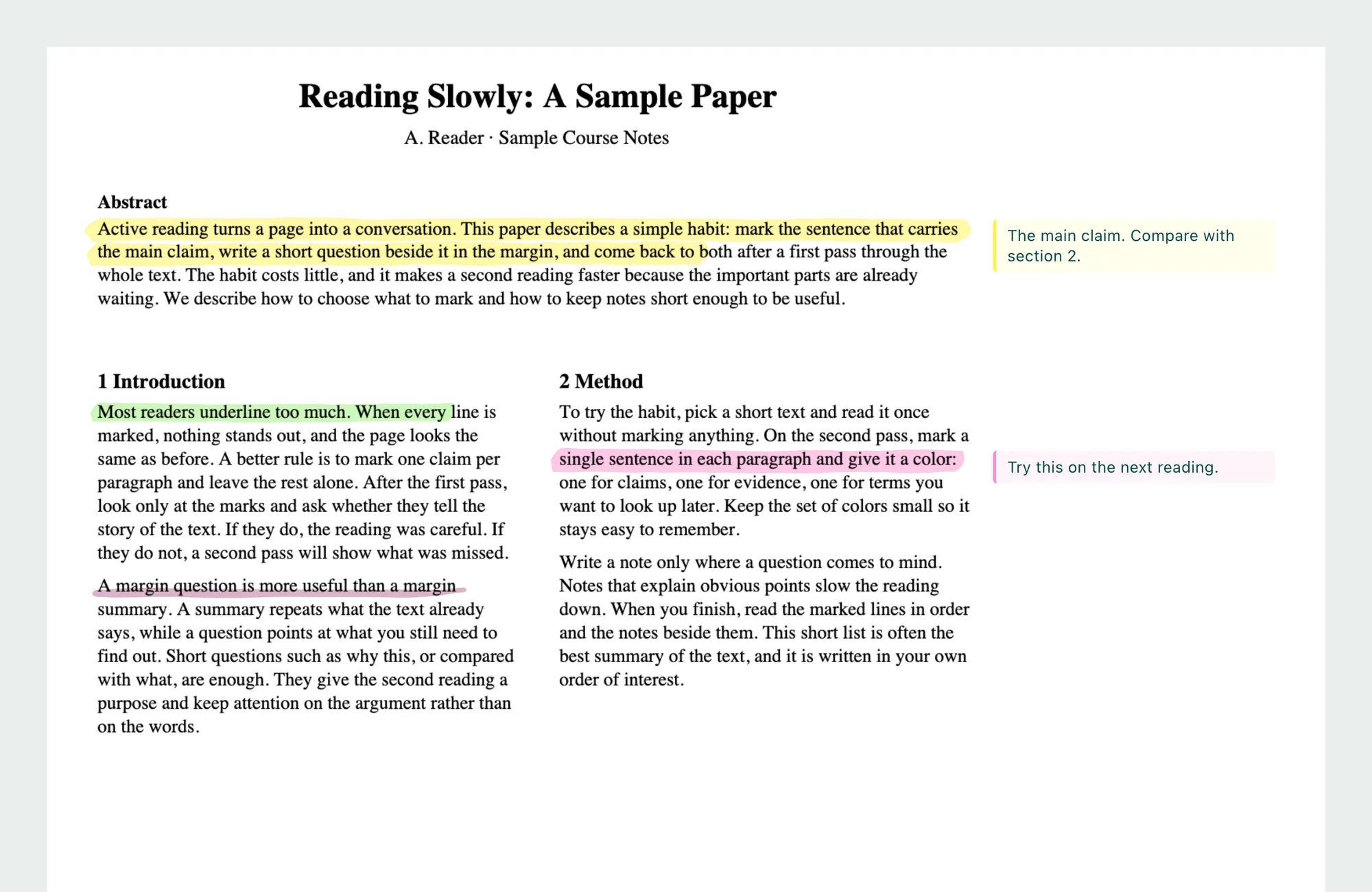
A two-column sample paper in Highlight PDF with hand-drawn yellow, green and pink highlights, a sketched pink underline, and two comments in the margin beside their passages
One page of a sample paper, marked in Highlight PDF. Three colors and an underline in the Sketch stroke, and each comment in the margin beside the passage it is about.

Open the paper and a yellow marker is already in your hand. Drag along a line and the highlight stays straight on it, stopping at the end of its column, so a two-column paper marks cleanly. Drag down to carry it onto the next lines. Double-click marks one word, and a third click its whole sentence.

Annotate

Change a mark, underline it, or comment beside it
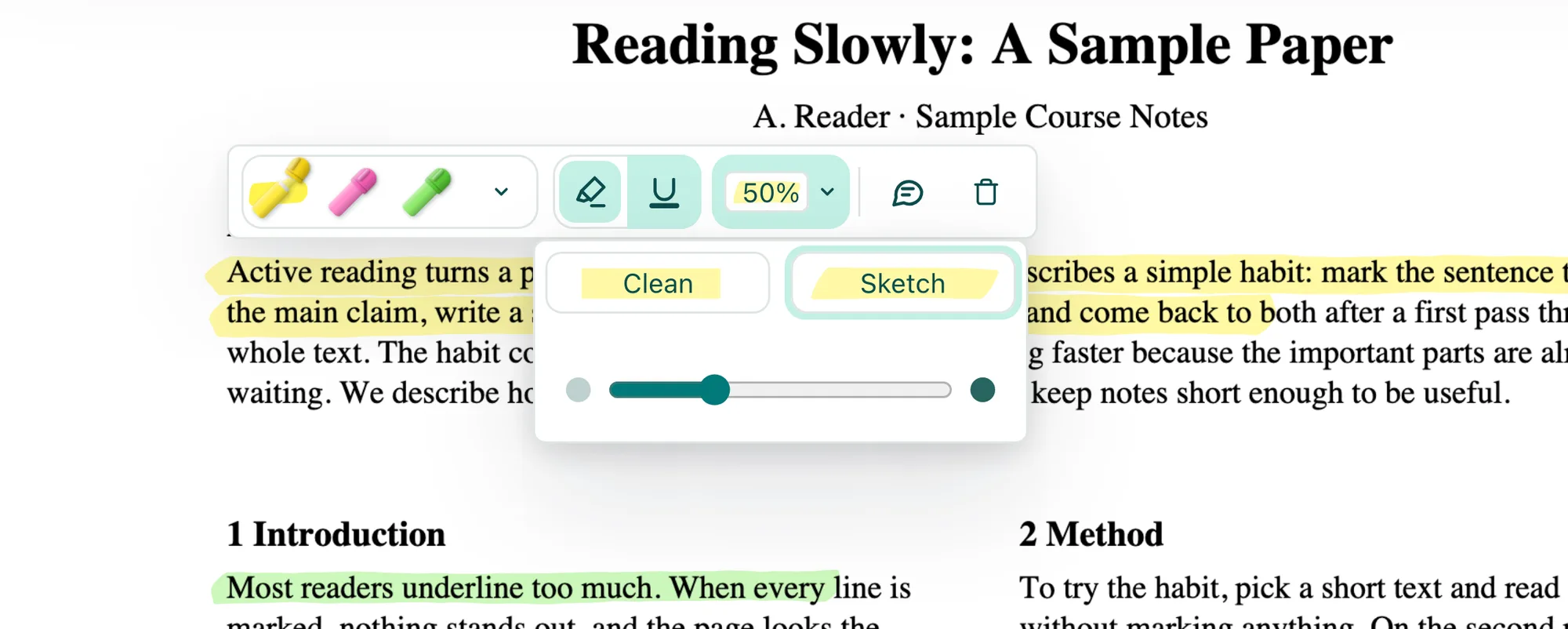
A sketched yellow highlight with its toolbar open above it, and the stroke setting open below the toolbar with Sketch picked over Clean and an opacity slider
Rest on a highlight for its toolbar: its colors, highlight or underline, the stroke and opacity, Comment and Delete.

Rest the pointer on a highlight, or tap it on an iPad, and its toolbar opens. Whatever you pick becomes your marker for the next lines, so a color can carry a meaning: yellow for claims, green for methods, pink for the parts you want to question. Pick Sketch and every highlight and underline looks drawn by hand, with a chisel edge and ends that run a little past the line, the same on screen, in print and in the downloaded PDF. Comment opens a card in the margin beside its passage, and the card moves with the page as you scroll and zoom.

Scanned chapters

Highlight a scanned page that has no text to select
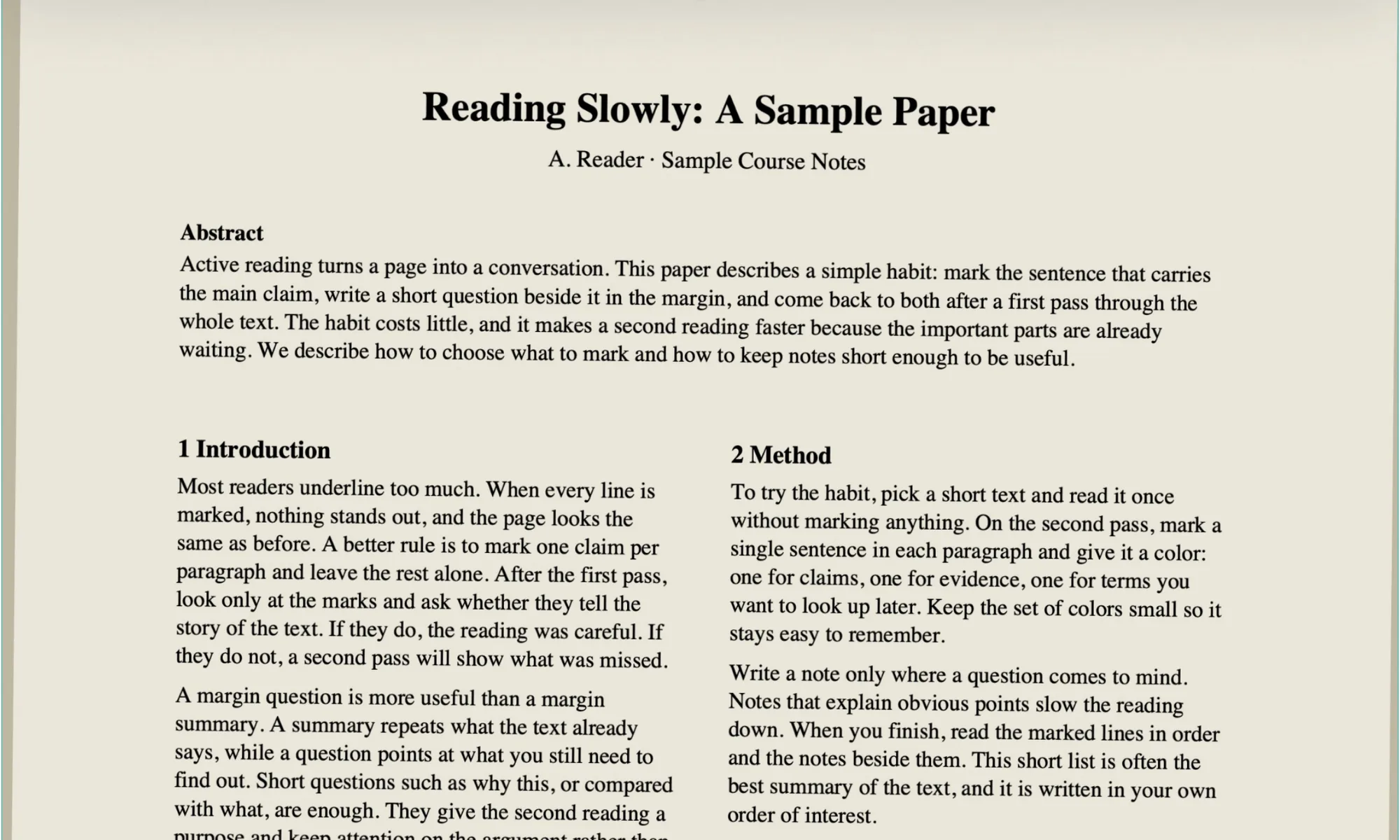
A slightly tilted scanned page of a paper with no marks, wiping to the same scan with sketched yellow and green highlights and a pink underline lying along their linesScanned pageHighlighted
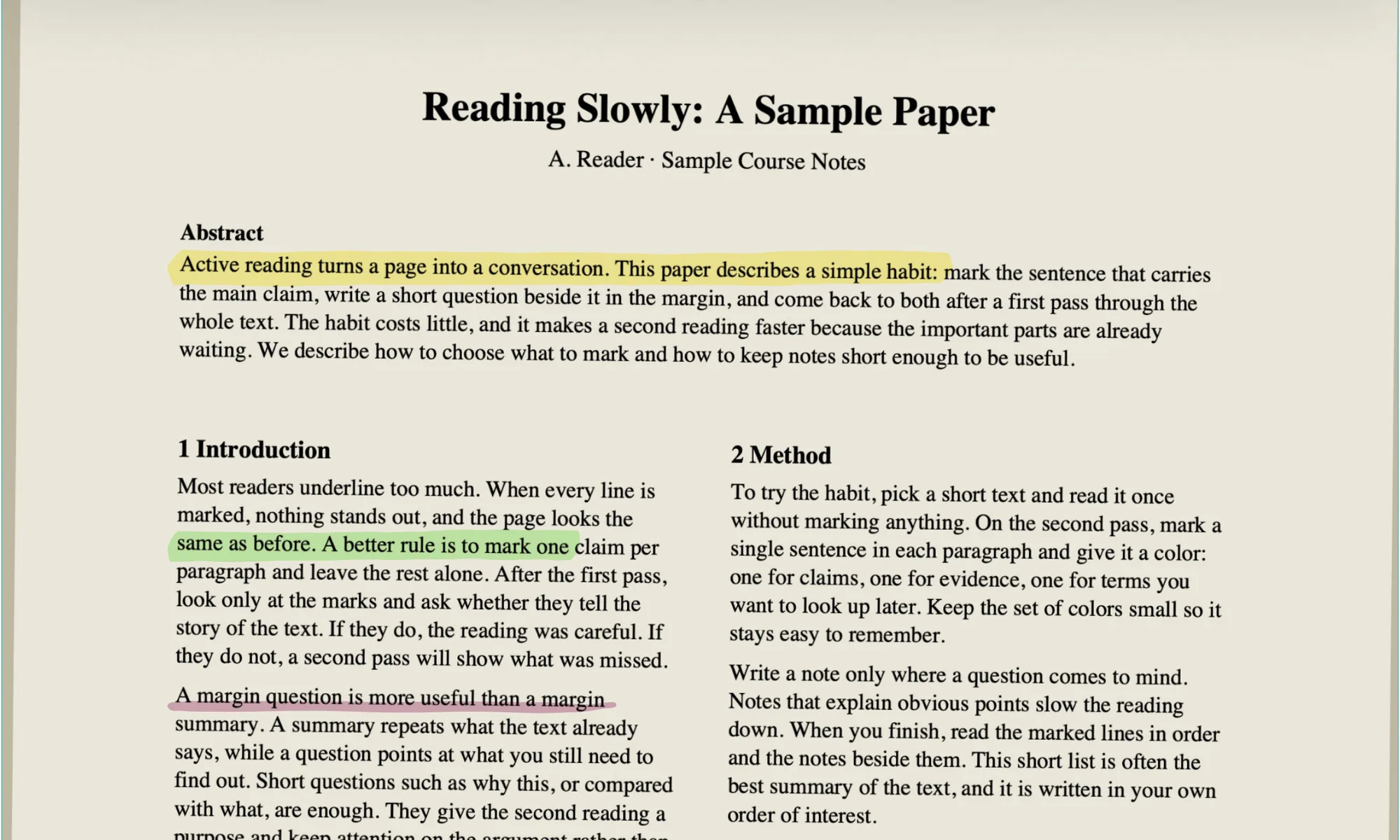
A page that is only a picture, highlighted line by line. There is no text layer under it.

Library scans and photographed pages are images, with no text in them to select. Highlight PDF reads the lines from the page image itself, and the band still lies along each line, the same as on a digital paper. Pages in Hebrew or Arabic work too: on a right-to-left page the highlight follows the line from right to left.

Reading lamp

Full screen, with only the paper in front of you
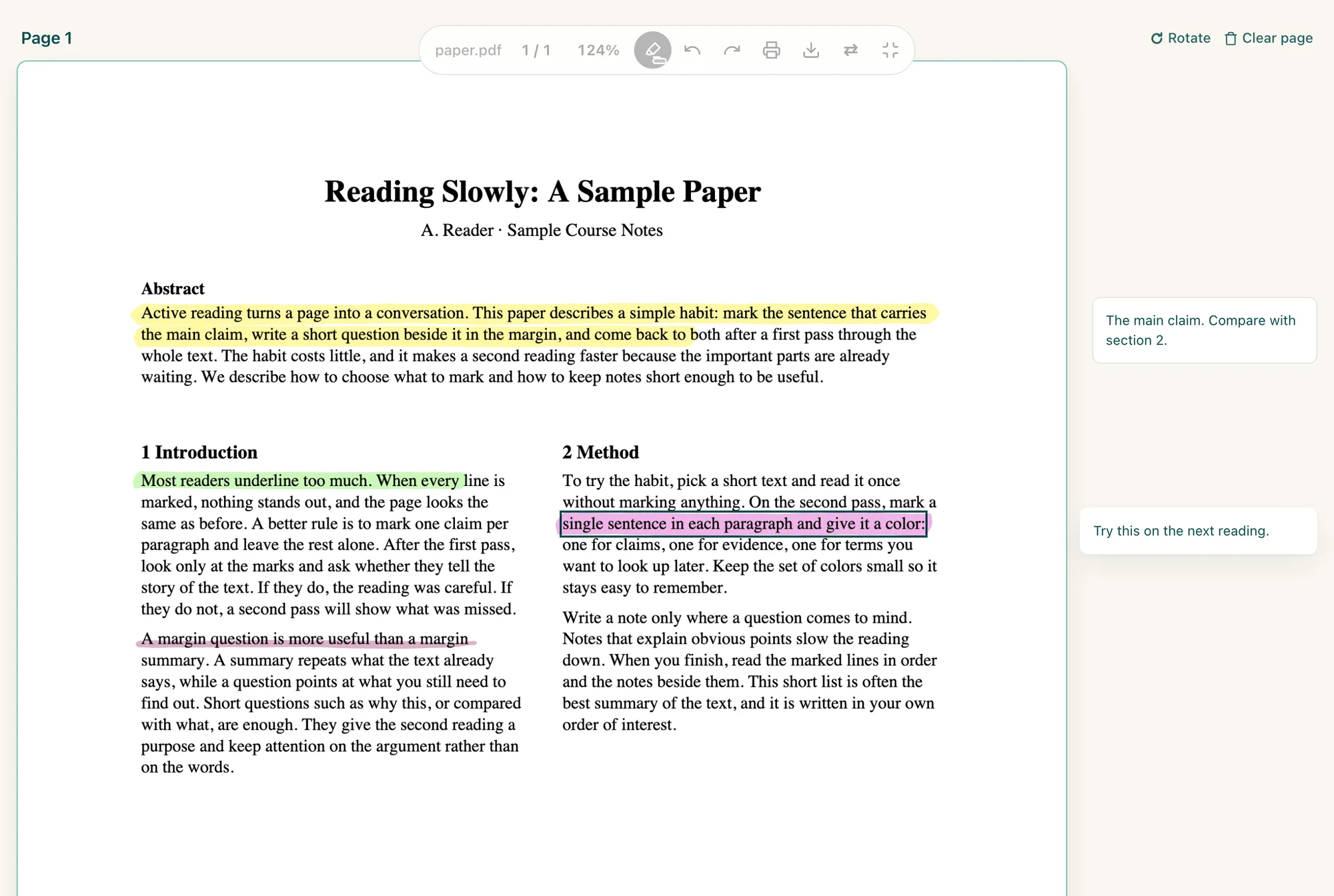
Highlight PDF in full screen: the marked paper fills the view, a small capsule of controls floats at the top, and the comments sit beside the page
The Reading lamp: the paper fills the screen, and a small capsule holds everything else.

Pull or click the cord under the page for the Reading lamp. The paper fills the screen and a floating capsule holds the page jump, zoom, the marker, Undo, Print and Download. It goes quiet while you read and wakes when you reach for it. Fit text trims the paper's empty margins away, so the words fill the screen.

Print

Three ways to print a marked paper

A downloaded PDF keeps each comment as a note that opens on a click, and those notes usually stay off the paper when you print. So Print in Highlight PDF lays the paper out for printing in three ways. The two with notes appear once the paper has a comment.

The three print options, and when each one helps.
Print optionWhat you getGood for
PrintThe pages with their highlights and underlines, at full sizeRereading on paper, or a clean copy to bring along
Print with my notesEach page a little smaller, with every comment in the right margin beside its passageA seminar or revision, where a note belongs next to its line
Print with notes at the endThe pages at full size, then a Notes sheet listing every comment with its pageLong comments, or pages that need all their room
A print sheet of the marked paper, the page a little smaller, with its two comments printed in the right margin beside the yellow and pink passages
Print with my notes: each comment lands in the margin beside the lines it is about.
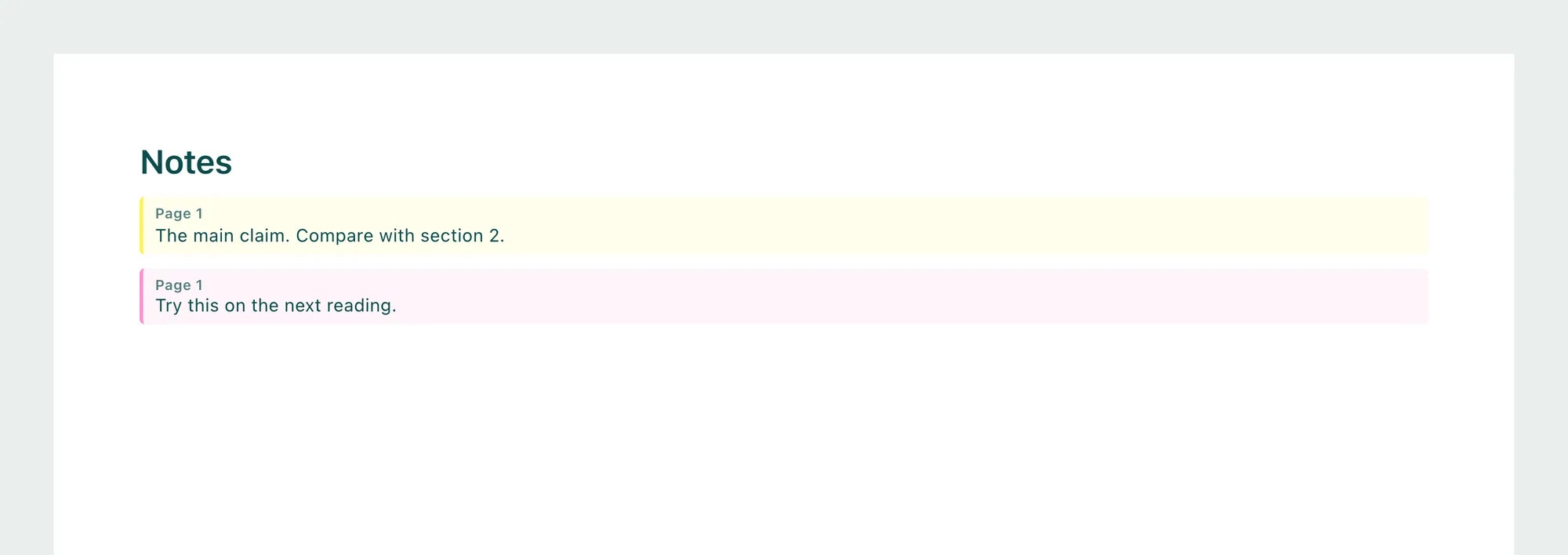
The Notes sheet printed after the pages, listing two comments, each under its page number and edged in its highlight color
Print with notes at the end: the pages print at full size, and a Notes sheet follows with every comment and its page.
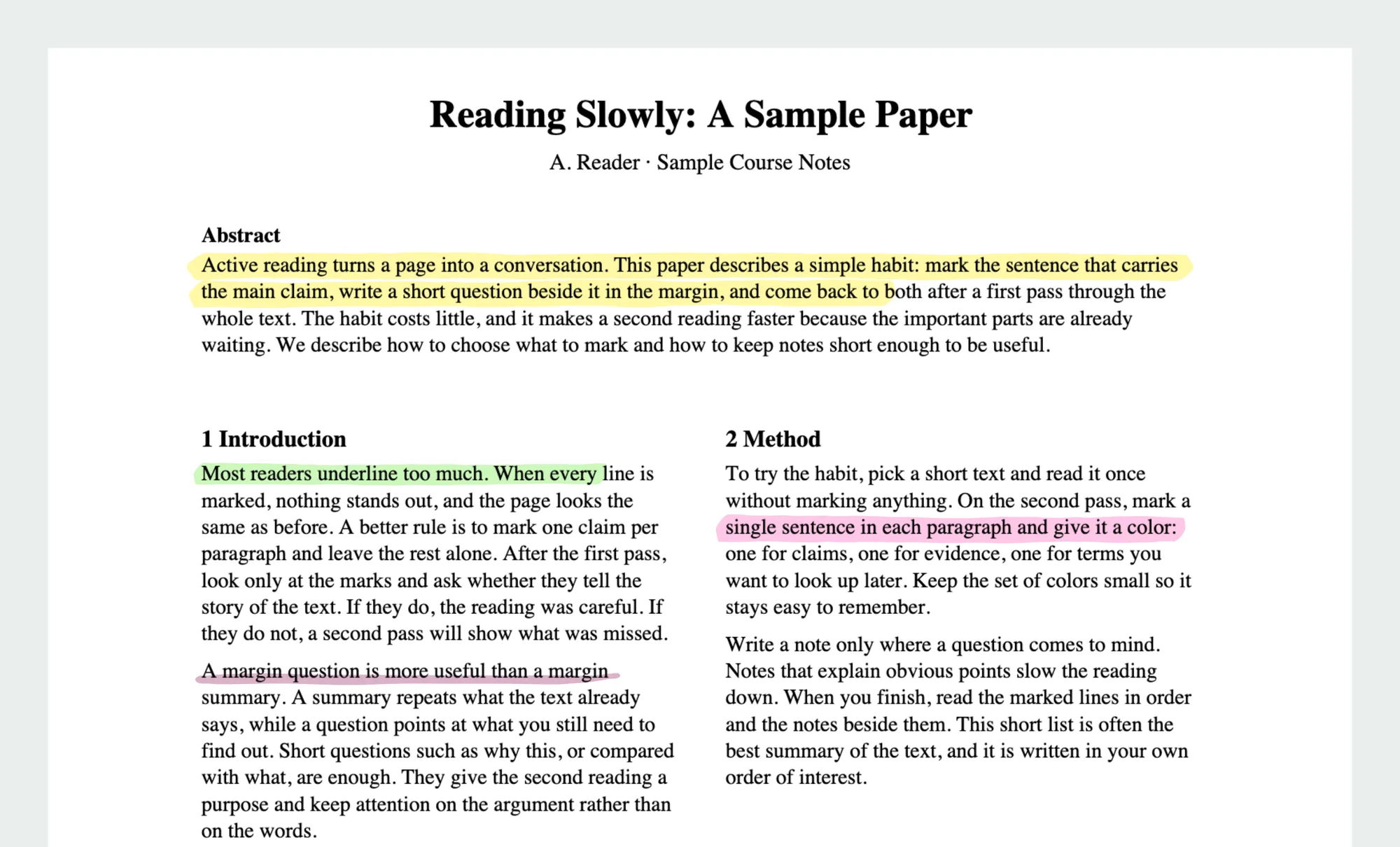
A plain print sheet of the paper at full size with its sketched highlights and underline and no notes
Print: the pages and your marks, nothing else, with the sketched strokes just as they look on screen.
Keep your notes

Your marks stay in the PDF and on your device

Where your highlights and comments go after you close the paper.
What you needWhat to do
Share a marked paper with a study partner or a supervisorDownload: highlights and comments are saved as standard PDF annotations that open in any PDF viewer
Come back to the paper laterIt stays in your recent files on this device with everything you did
Edit your marks again after downloadingOpen the downloaded file here again and every highlight and comment comes back editable
Private by default

Your papers and your notes stay on your device

A draft you are writing, a paper under review, your own thoughts in the margin: none of it is uploaded. The highlighting, the comments and the download all happen in your browser, and once the page has loaded it keeps working with no connection. It is free and open source, with no account, no watermark and no page limit. I think a good way to read should be free for everyone.

Open a paper in Highlight PDF
Got questions?

Frequently asked questions

Is this academic paper reader free?

Yes. Highlight PDF is free with no signup, no watermark and no page limit, and it is open source. It runs in your browser on a Mac, a PC or an iPad.

Can I highlight a two-column paper?

Yes. The highlight follows the line you drag along and stops at the end of its column, so it never runs across into the next one.

How do I annotate a PDF paper?

Highlight or underline the passages that matter, then rest on a highlight and choose Comment to write a note beside it. A comment always belongs to a highlight, so every note sits next to the words it is about.

Can I highlight a scanned chapter or a photo of a page?

Yes. The highlight reads the lines from the page image itself, so a scanned page or a photo of a book page works with no text layer needed.

Will my highlights and comments open in other PDF readers?

Yes. Download saves them as standard PDF annotations, so they open in any PDF viewer, and they come back editable when you open the file in Highlight PDF again.

Can I print a paper with my comments?

Yes, in three ways. Print gives the pages with their highlights at full size. Print with my notes makes each page a little smaller and puts its comments in the right margin beside their passages. Print with notes at the end keeps the pages at full size and lists every comment with its page on a Notes sheet after them. The two with notes appear once the paper has a comment.

Can my highlights look hand drawn?

Yes. Choose Sketch in a highlight's stroke setting and its band or underline gets a chisel edge and ends that run a little past the line. It looks the same on screen, in print and in the downloaded PDF.

Does it work on an iPad?

Yes, in Safari. Swipe along a line to highlight it, tap a highlight to open its toolbar, and use two fingers to zoom and move the page.

Is my paper uploaded anywhere?

No. The highlighting, the comments and the download are all made in your browser. Your file never leaves your device, and there is no processing server.

Same suite

More PDF tools

Every one of these runs on your device, free, with nothing uploaded.

Also: Extract PDF Pages · Rotate PDF · Remove PDF Pages · Add Page Numbers to PDF