
What do you want the finished PDF to look like?
| Tool | Choose it when you want to | A practical example | What happens on Download |
|---|---|---|---|
| Delete | Remove an existing text or image element | Take out a wrong answer or a watermark | The selected element is deleted from the page; the rest stays selectable |
| Whiteout | Cover an area with a clean, page-colored box | Hide an old form value and type a replacement over the cleared field | The marked page is flattened into one image |
| Blackout | Cover an area with a clear solid redaction | Black out a name, reference number, address, or part of a scan | The marked page is flattened into one image |
| Blur | Soften visual detail while leaving context visible | Blur a phone number, face, signature or screenshot detail | The marked page is flattened into one image |
There is no single “best” option because these are different jobs. Delete changes the page content. Whiteout, Blackout and Blur change how an area looks. The Redact tool puts all four in one place so you can choose per item, and even combine them on one document.
Delete the old value, then enter the new one
A form went out with the wrong employer on it. Choose Delete and click the highlighted value. The selected element is removed from the PDF page. The field, its label and all other page text stay in place and remain selectable.
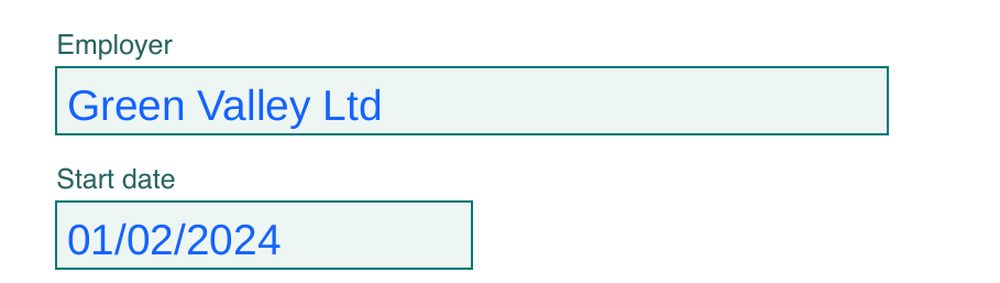 BeforeAfter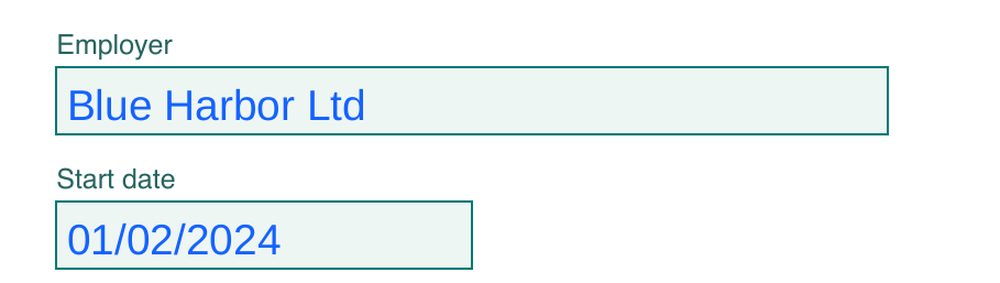
- 1Choose Delete. The editor highlights the text and image elements it can remove. Click the complete element you want gone.
- 2Download the edited PDF. The selected value is deleted from that page. Delete-only pages keep the rest of their text selectable and searchable.
- 3Open the result in Sign & Fill PDF. Add the new value in the cleared space, position it, and download the completed form.
This also works for a watermark an app stamped on your file, an outdated heading, an old price, a duplicated line, a logo, or a picture you no longer want on the page. When a link sits over the watermark, Delete takes the link too.
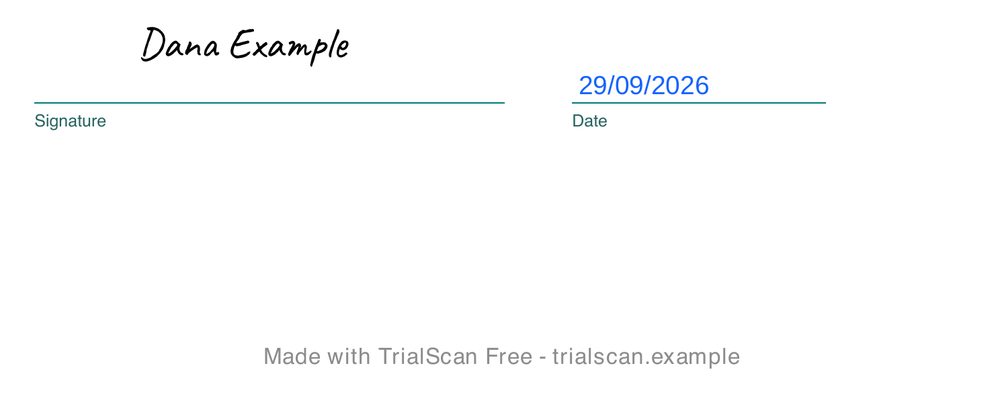 BeforeAfter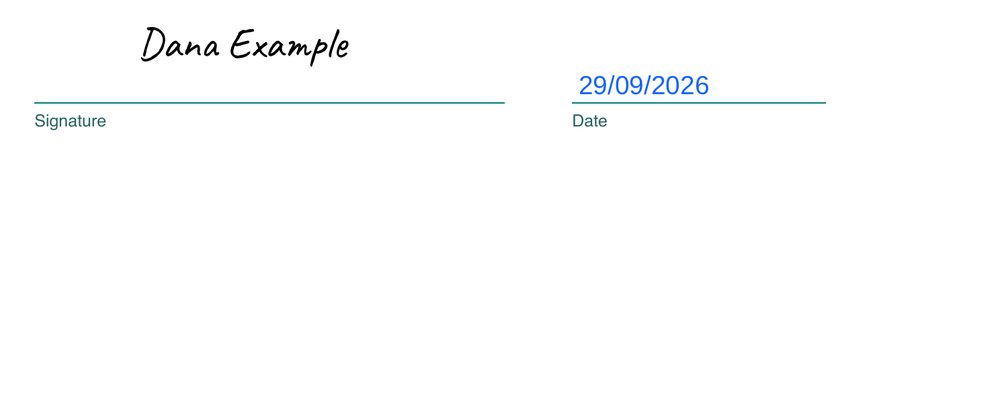
A scan is usually one large image rather than separate words, so use Whiteout when you only need to clear one part of a scanned form.
Whiteout gives you a clean surface for replacement text
Whiteout is the visual alternative. Draw a box over the old answer, pick its color to match the page or field behind it (it starts white), download the flattened page, then add a new answer with Sign & Fill PDF. It is especially useful when the old value is part of a scan and cannot be selected as its own text element.
 BeforeAfter
Choose between them by result: Delete when you want the element gone and the rest of the PDF page preserved as searchable content. Whiteout when you want a clean visual patch, including on scanned or image-based pages.
Blackout clearly shows that content was removed from view
Blackout is intentionally visible. Use it when the reader should understand that a name, number, address, paragraph, or image region was withheld. Because you draw over an area, it works on normal PDFs and scanned pages alike.
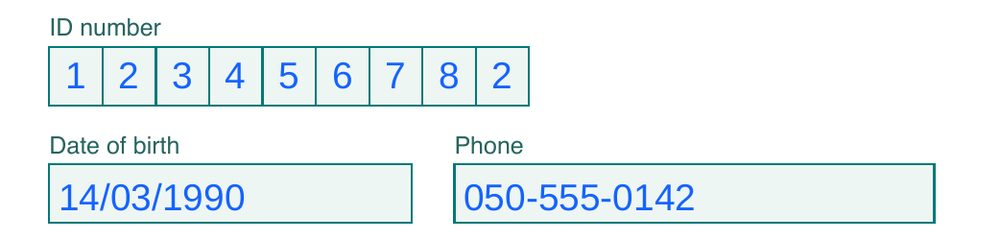 BeforeAfter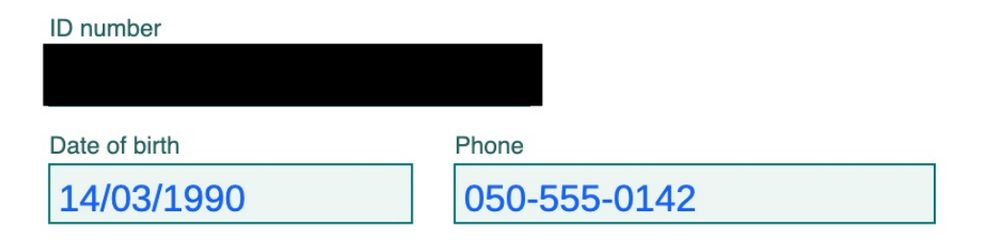
- 1Choose Blackout and drag across the full area you want covered.
- 2Repeat wherever needed. Pick Blackout again, or keep the tool on for several areas.
- 3Download. Every page carrying a Blackout, Whiteout or Blur mark is flattened automatically.
Blur keeps the shape and context of an area
Blur is useful when a hard rectangle would dominate the page. Soften a phone number on a form you share as an example, a face in a photo, a handwritten signature, or a screenshot detail, anything that should stay visibly there without being readable.
BeforeAfter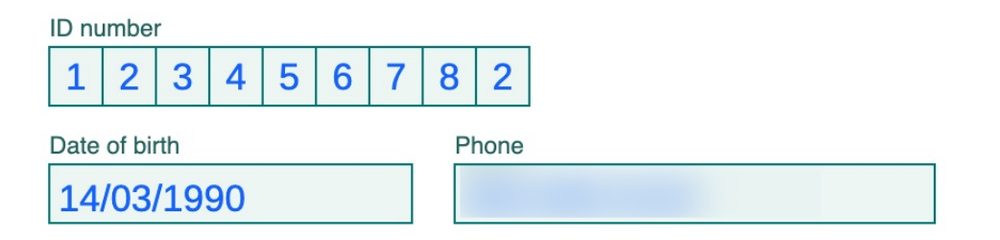
To blur text in a PDF, choose Blur and drag a box over the words. There is no text-selection step, so on a phone zoom in first to place the box precisely. After Download the page is one flattened image and the words are gone as text, but blurred pixels can still hint at a short or predictable value.
Blur is a design choice rather than a substitute for Blackout. Choose the result that fits your document: softened context with Blur, an explicit solid cover with Blackout, a clean patch with Whiteout, or actual element removal with Delete.
Flattening makes the marked page one-way
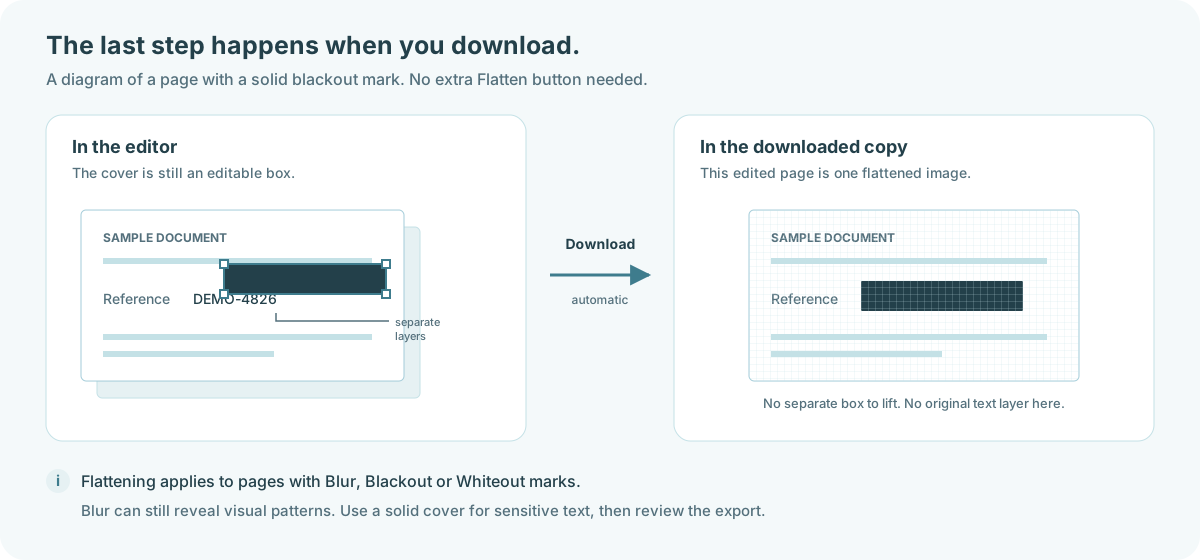
Before Download, the cover or blur is an editable object: move it, resize it, recolor a Whiteout, or undo it. During Download, PDkef renders the page and its marks together into one page image. In that exported PDF the mask is no longer a separate object, so the action is intentionally one-way.
| After Download | Page with Delete only | Page with Whiteout, Blackout or Blur |
|---|---|---|
| Selected change | The selected element is deleted | The visual mark is baked into the page image |
| Other text | Stays selectable and searchable | Becomes pixels and is no longer searchable or selectable |
| Can the edit be moved later? | The element is already gone from the exported page | No; the mark is part of the flattened page image |
| Best fit | Removing or replacing page elements | Creating a final, fixed visual result |
Keep the original when you may need another version. Your browser draft remains separate from the downloaded result, so you can return to the editor, adjust the marks, and export a new copy without changing the one you already downloaded.
Try every option without uploading the PDF
The tool is free, has no account or watermark, and processes the PDF in your browser. The code is open source under the MIT license. You can check how local processing works or install PDkef for offline use after the required assets have loaded.
Ready to choose by result? Open Blur & Redact PDF, try the tools on a sample, and download a new copy when it looks the way you want.